
Help · step by step
How to file your CT600 and Companies House accounts with Taxley
To file with Taxley, create a free account, add your company and enter the year’s figures. Fix anything listed under “What’s left”, confirm the declaration and pay one fee. Then file the CT600 with HMRC using the company’s Government Gateway user ID and password, and file the accounts at Companies House with the company’s authentication code. A straightforward return takes about an hour.
Last reviewed
Video walkthroughs
Prefer to watch it done?
These short videos go through a return in Taxley on screen: the micro-entity accounts, then the CT600 and filing it, and a dormant company’s nil return. Press play to watch here, or open the guide for the chapters and a full transcript.
File your first CT600 yourself, step by step (UK, 2026)
Guide, chapters and transcriptHow to file a dormant company CT600 (UK, 2026)
Guide, chapters and transcriptBefore you start: what do you need?
Have these ready. Taxley asks for each one when it needs it, so you can start without them and add them later.
- The company registration number. Eight characters, like 01234567 or SC123456. Taxley looks the company up at Companies House and fills in its name and registered office.
- The company’s UTR. The 10-digit Unique Taxpayer Reference on HMRC’s letters to the company, such as the ‘Notice to deliver a Company Tax Return’ (CT603). It’s the company’s own, not a director’s personal Self Assessment UTR.
- The company’s HMRC Government Gateway user ID and password. Use the sign-in where Corporation Tax for this company is listed. The user ID is up to 12 letters and numbers, often 12 digits. It is not your email address. HMRC refusing the sign-in (its error 1046) is the most common reason a return comes back, and an email address typed as the user ID is one of the usual causes. If Corporation Tax isn’t listed in the account, add it first: HMRC posts an activation code to the registered office (how to add Corporation Tax).
- The Companies House authentication code. A 6-character code for filing the accounts online. Companies House posts it to the registered office, and it can take up to 10 working days to arrive. You only need it for the Companies House step.
- Your figures. The profit and loss account and balance sheet for the period from your bookkeeping, or a trial balance file (CSV or Excel) exported from your bookkeeping software. The accounts show last year’s figures too. If last year’s return was filed with Taxley, they’re filled in for you.
If one of these is missing, GOV.UK explains how to get it:
| What’s missing | Official GOV.UK page |
|---|---|
| The company’s UTR | Find a lost UTR number |
| A Government Gateway sign-in with Corporation Tax | Sign in or set up a sign-in for HMRC online services |
| The Companies House authentication code | Company authentication codes for online filing |
The nine steps, with screenshots
The screenshots show Taxley with a made-up demo company. Your screens show your own company and figures.
Step 1: Create your free account
Sign up with your name, email address and a password. Preparing a return is free: you pay only when you file.
Step 2: Start a new return and choose the company
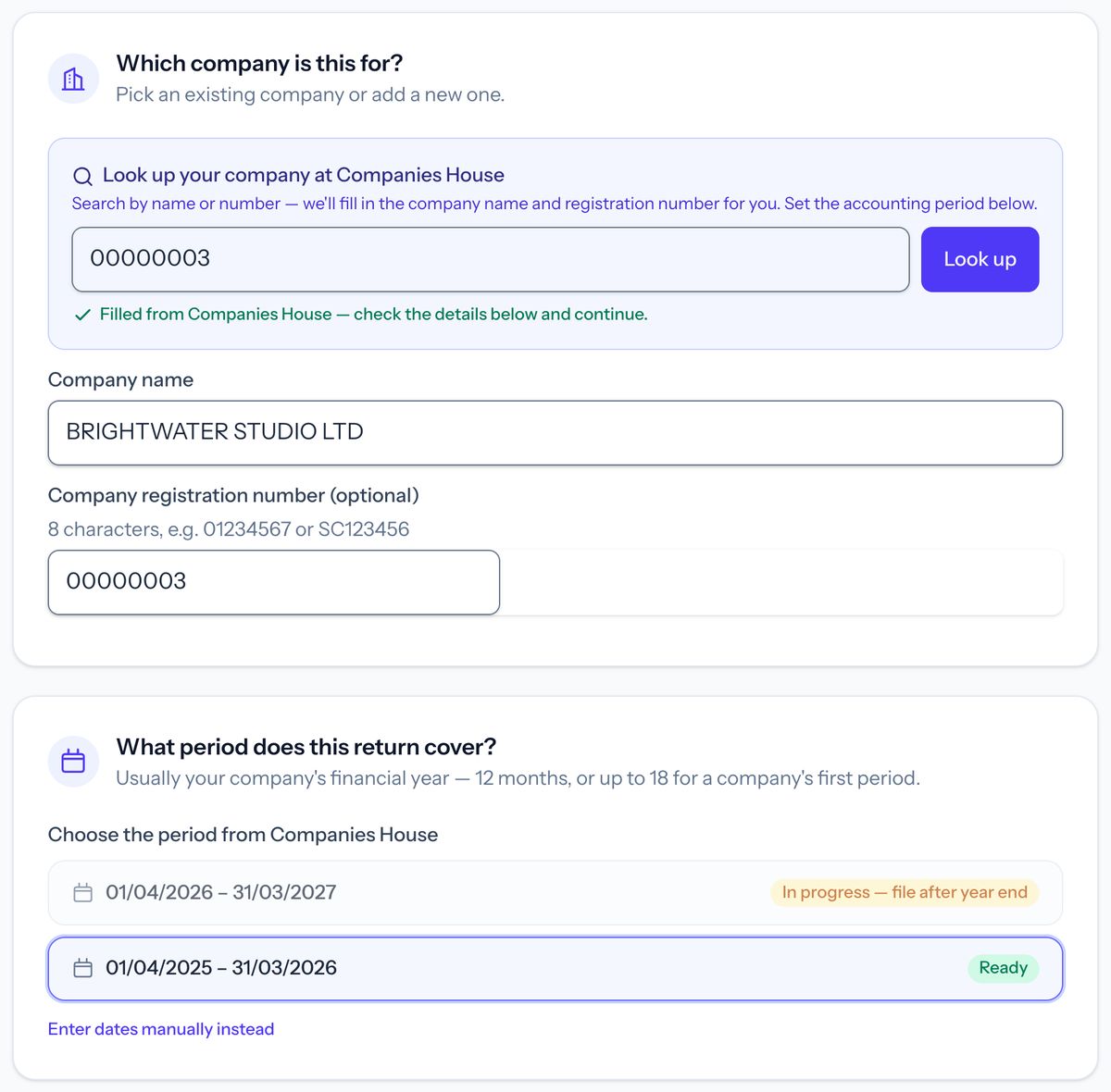
Press “New filing” in the menu (if asked, choose “New return”). Under “Which company is this for?”, pick a company you’ve filed for before or choose “A new company” and look it up at Companies House by name or number. Then choose the period under “What period does this return cover?”.
Pick the company from the search results and Taxley fills in its name, number and registered office. It then lists the accounting periods Companies House holds for the company, so you can choose the one you’re filing. You can also enter the dates yourself.
Step 3: Say what the company does and which accounts to file
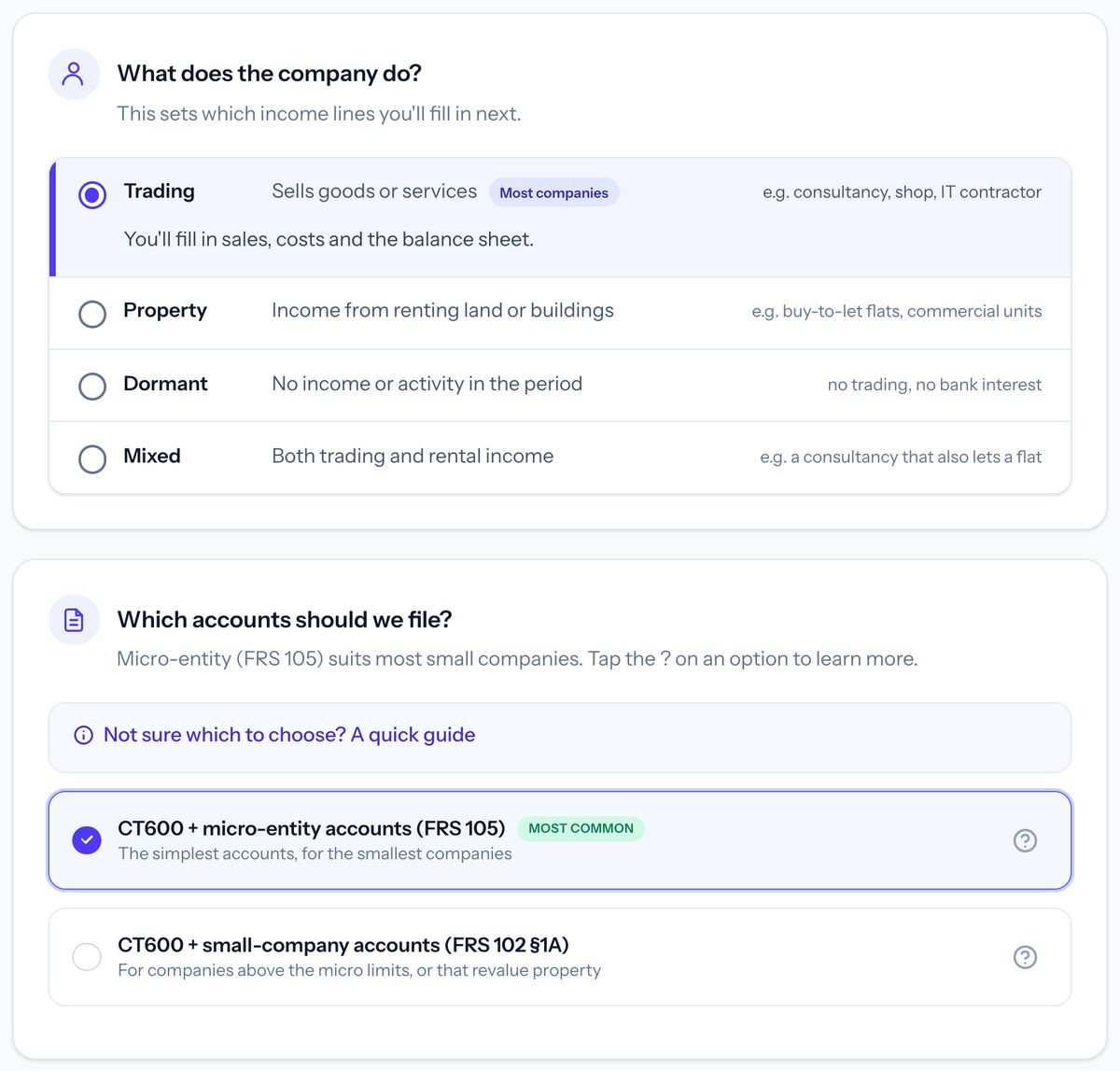
Answer “What does the company do?” (Trading, Property, Dormant or Mixed) and “Which accounts should we file?”, then press “Continue to my numbers”.
Micro-entity accounts (FRS 105) suit most small companies. Choose small-company accounts (FRS 102 Section 1A) if the company is bigger than the micro-entity limits Taxley shows you, holds investment property you want at market value, or is a charity. Not sure? Open “Not sure which to choose? A quick guide” on the page.
Step 4: Enter your figures
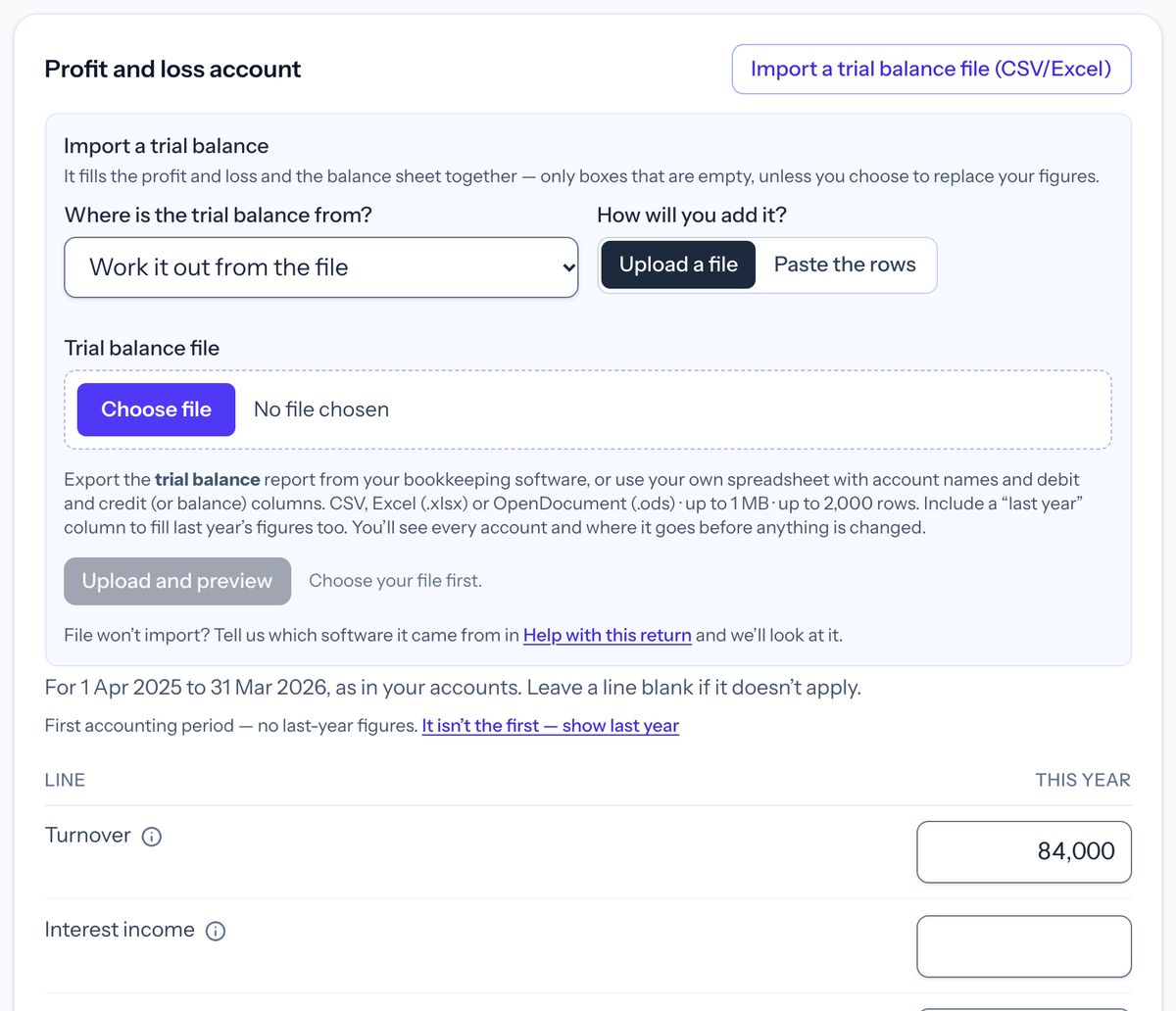
Fill in the profit and loss account and the balance sheet. To skip the typing, press “Import a trial balance file (CSV/Excel)” and Taxley fills in both. Your work saves as you type. When you’re done, press “Review and pay” (in Simple mode) or “Review your return →” (in Advanced).
For most micro-entity returns Taxley opens Simple mode, which puts the accounts and the tax on one page. For a trial balance, choose your bookkeeping software and the file, then check the line each account goes on before Taxley fills in the figures. Switch to Advanced for every line and tax adjustment, or to Full CT600 to see every box of the return.
Step 5: Check “What’s left” and fix each item
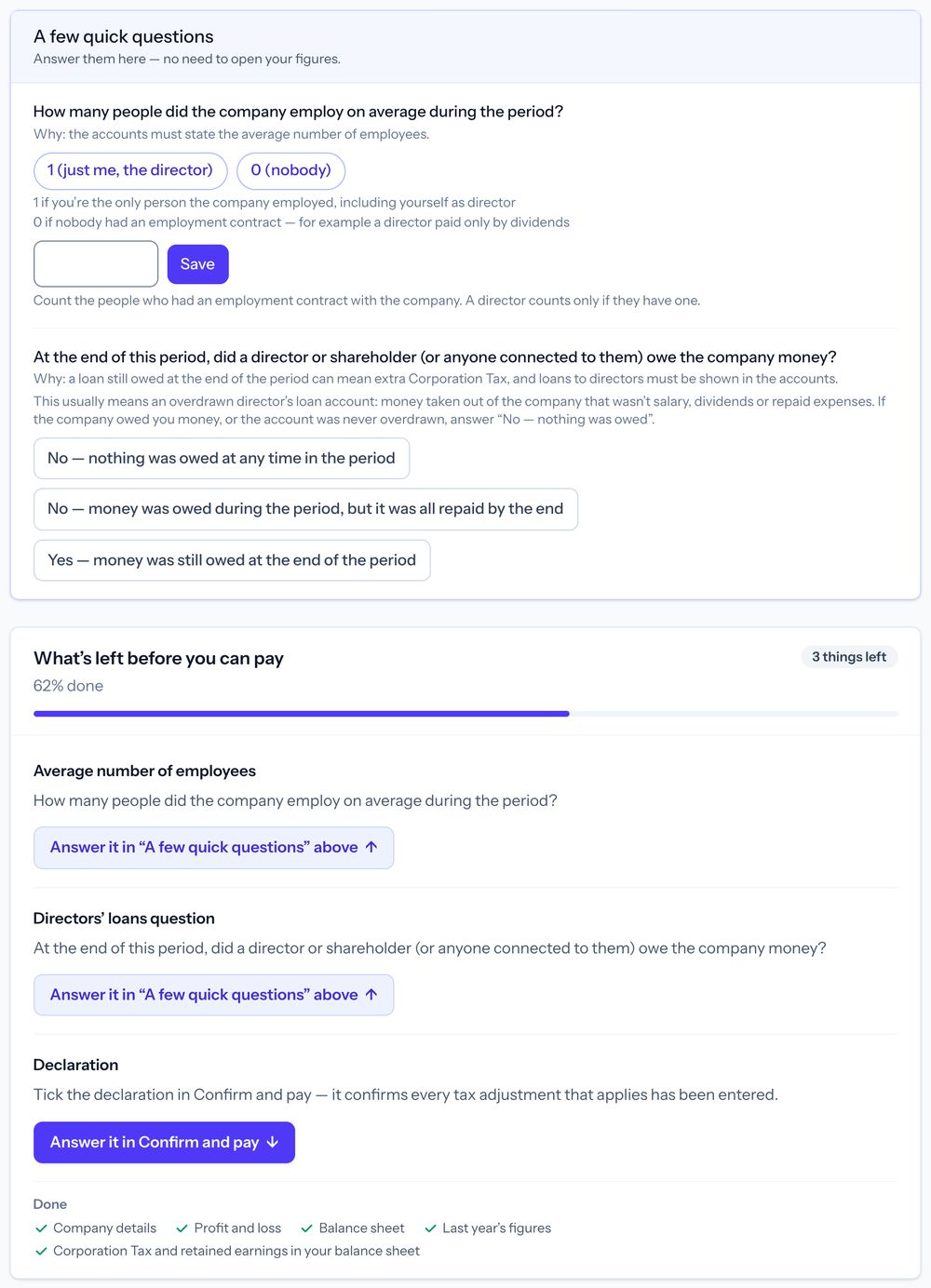
The return’s page lists everything still to do under “What’s left before you can pay”, with how much is done. Each item has a button that takes you to the fix.
Quick questions, such as how many people the company employed, are answered in “A few quick questions” at the top of the page. Anything marked “Check” can be fixed, or accepted as it is with one click. While you work, Taxley works out the Corporation Tax and builds the CT600, the tax computation and the iXBRL accounts from your figures.
Step 6: Confirm the declaration and pay
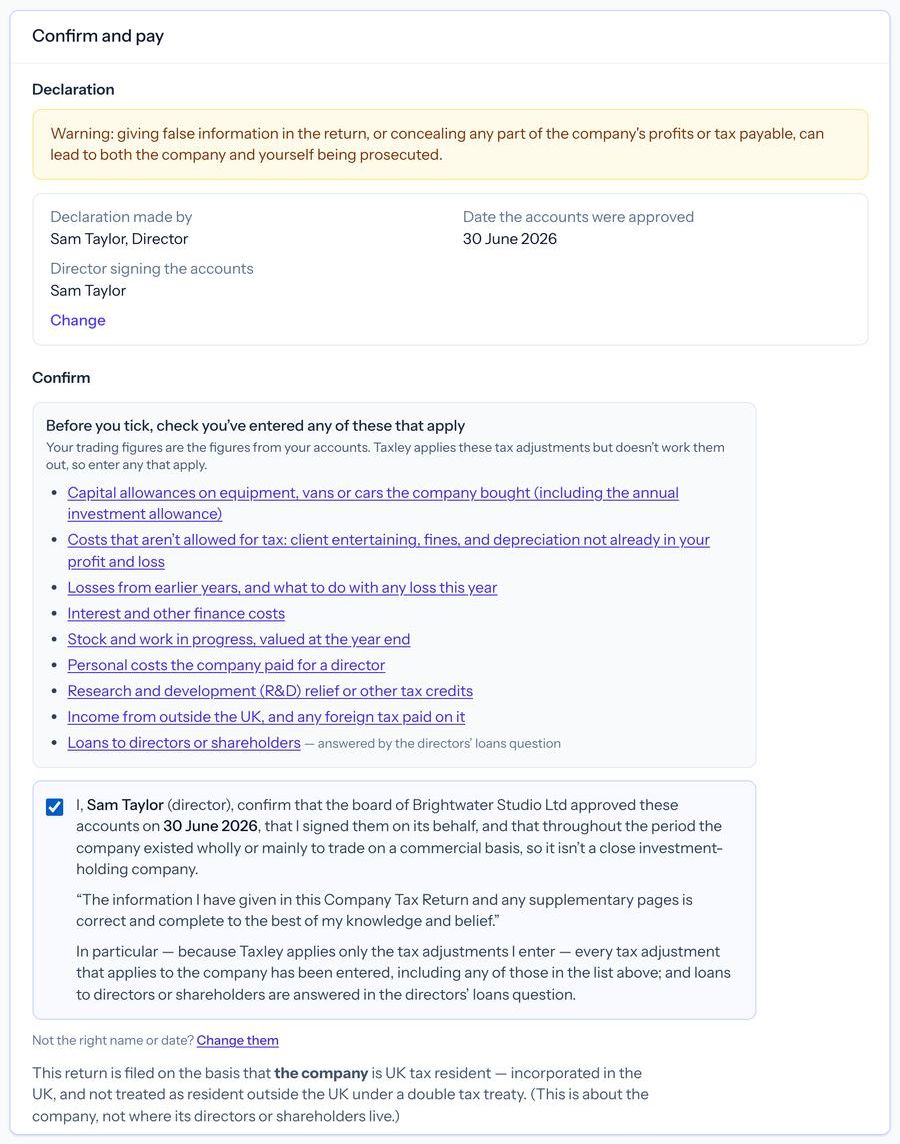
When nothing is left, the “Confirm and pay” card opens. Check the declaration, tick to confirm the return is correct and complete, and pay the filing fee.
Taxley fills in the declaration from what it already knows, such as the director’s name, and you can change it. Payment goes through Stripe’s secure checkout. Where Taxley files the accounts at Companies House, the same fee covers that too. See prices.
Step 7: File the CT600 with HMRC
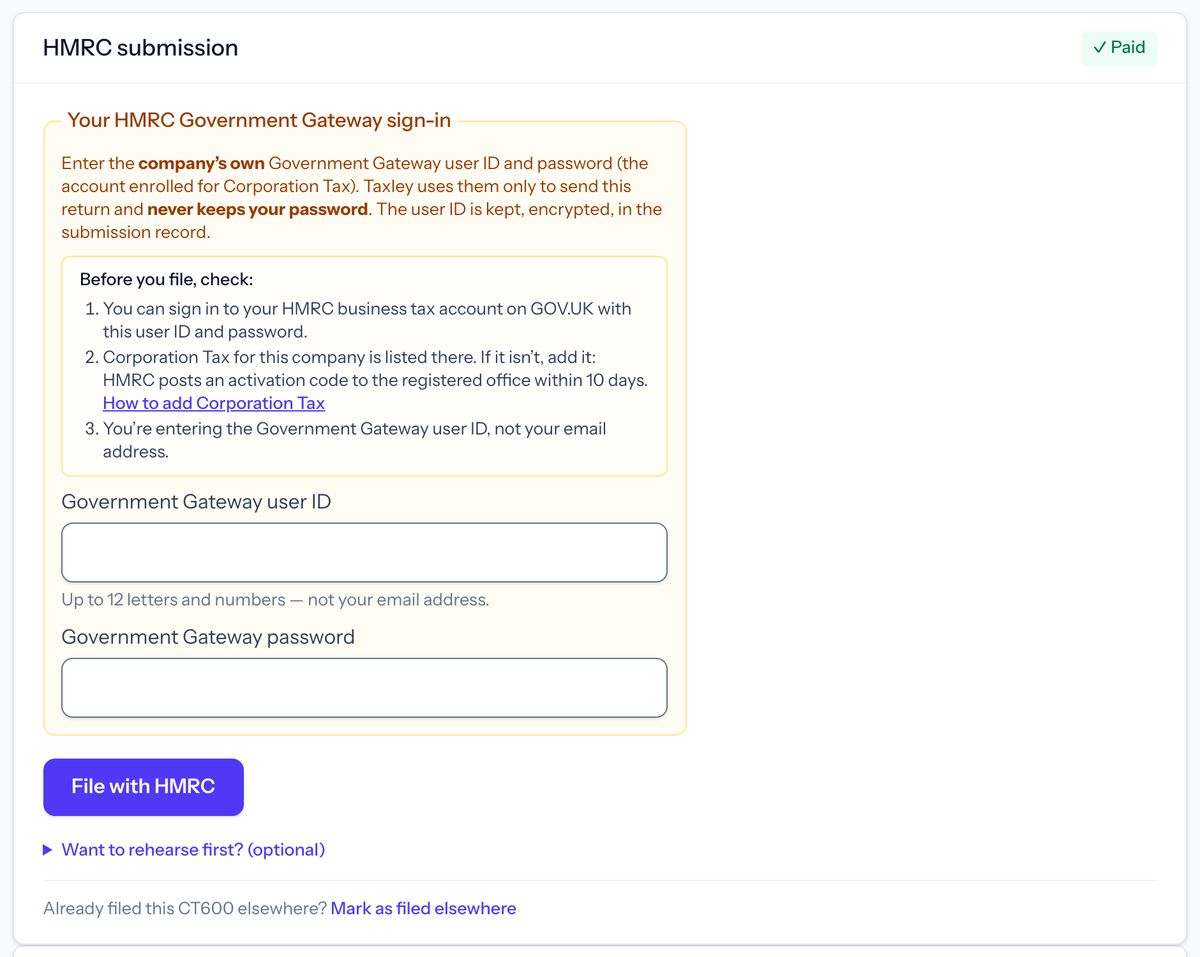
Under “HMRC submission”, enter the company’s Government Gateway user ID and password and press “File with HMRC”.
Taxley uses the user ID and password only to send this return and never keeps your password. The user ID is kept, encrypted, in the submission record. Want to rehearse first? Open “Want to rehearse first? (optional)” and press “Run a test (nothing is filed)”. HMRC’s test service checks the format and figures, but not your UTR or sign-in.
Step 8: File the accounts at Companies House
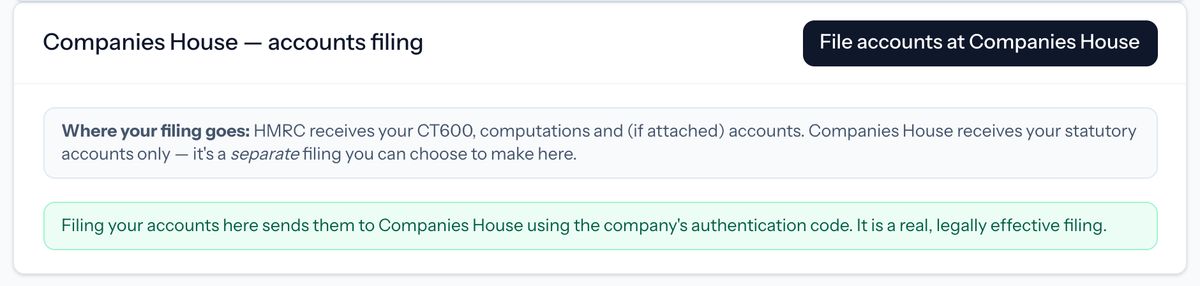
Under “Companies House — accounts filing”, press “File accounts at Companies House”. Taxley sends the accounts with the authentication code saved for the company.
Save the code once in the company’s details: if it isn’t saved yet, the button is greyed out with “Add auth code →” beside it. Once Companies House accepts the accounts, they go on the public register. A community interest company files its accounts with its CIC34 report instead: see how to file a CIC.
Step 9: Check HMRC accepted the return and keep your copies
The “Filing journey” on the return’s page shows “Accepted by HMRC” with the date and time, and Taxley emails you HMRC’s correlation ID. Download your copies from “Return documents”.
If HMRC rejects the return, the email says what HMRC reported. Correct it and send it again at no extra charge; your deadline still applies. Your payment receipts are under “Orders & receipts” in the menu.
After you file: what’s left to do?
- Pay the Corporation Tax. Filing the CT600 doesn’t pay the tax. The company pays HMRC itself, by 9 months and 1 day after the end of the accounting period (GOV.UK: pay Corporation Tax, or our guide to paying).
- Need to change something? Amending a return filed with Taxley, once HMRC has accepted it, is included at no extra charge, and so is correcting and resending a return HMRC rejected. Press “New filing”, then “Amend a return”.
- Next year. On a filed return’s page, press “Prepare next year’s return”. The new return starts with the company’s details and this year’s closing balance sheet, so you don’t type them again.
Questions people ask
How long does it take to file with Taxley?
A straightforward return takes about an hour, and most of that is entering your figures. Your work saves as you go, so you can stop and come back to it.
Is my Government Gateway user ID my email address?
No. The user ID is the one HMRC gave you when the account was set up: up to 12 letters and numbers, often 12 digits. Entering an email address instead is one of the most common reasons HMRC refuses the sign-in.
What if I don’t have the Companies House authentication code yet?
You can still prepare the return, pay and file the CT600 with HMRC. Ask Companies House for the code, which it posts to the registered office, then save it on the company’s page in Taxley and file the accounts from the return’s page.
Do the CT600 and the accounts have to be filed at the same time?
No. They are two filings: the CT600 goes to HMRC and the accounts go to Companies House, each from its own section of the return’s page once you’ve paid. Each has its own deadline.
Does filing the CT600 pay the company’s Corporation Tax?
No. The return tells HMRC how much tax is due, and the company pays it to HMRC itself. Taxley doesn’t take tax payments.
What happens if HMRC rejects the return?
Taxley emails you what HMRC reported and shows it on the return’s page. Correct the return and send it again at no extra charge. Your deadline still applies.
Can I see the tax before I pay?
Yes. Preparing a return is free, and the return’s page shows the Corporation Tax computation before you pay. You pay only when you’re ready to file.
Ready to prepare your return?
Preparing is free. You pay one fee only when you file, and where Taxley files your accounts at Companies House, that fee covers it too.